Download the workflows
An editorial PDF to read and an editable, visual PowerPoint deck.
Email is probably one of the easiest places to get actual value from n8n.
Here are 3 workflows I would start with.
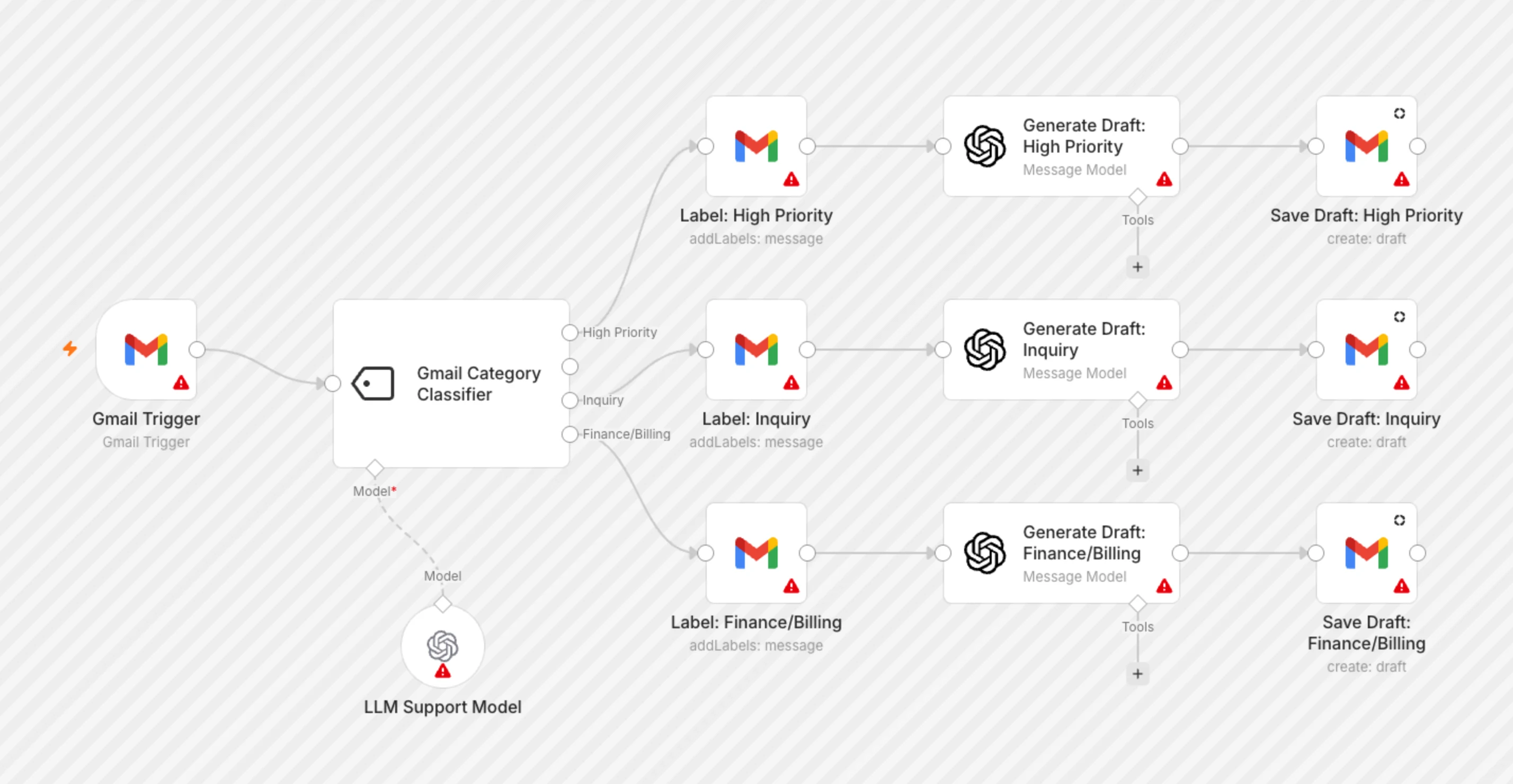
1. Automatically sort emails and draft replies
Gmail → AI classification → apply label → create reply draft
Every incoming email gets classified into something like:
urgent / sales / support / invoice / newsletter / personal / ignore
Then n8n applies the Gmail label and creates a draft when the email actually needs a reply.
This is one of the most common n8n email setups, and there are already multiple templates built around Gmail classification + AI-generated drafts. For example, n8n has a Gmail classifier with draft replies and a support and sales triage template that leaves sending to a human.
Analyze this incoming email.
Return ONLY valid JSON:
{
  "category": "urgent | sales | support | invoice | newsletter | personal | ignore",
  "priority": "high | medium | low",
  "needs_reply": true,
  "summary": "one short sentence",
  "draft_reply": "reply text or null"
}
Rules:
Use "urgent" only when there is a clear deadline, serious problem or something blocking work.
Use "invoice" for invoices, payment requests, receipts and billing-related emails.
Use "newsletter" for promotional or mass-distributed content.
Set needs_reply to false for newsletters, receipts, automated notifications and emails that do not expect a response.
If a reply is needed, write a short natural reply matching the sender's tone.
Do not invent prices, dates, promises or facts.
If information is missing, write [NEEDS INPUT] inside the draft.
Then use an n8n Switch node:
urgent → add "Urgent" label + notify me
sales → add "Sales" label + create draft
support → add "Support" label + create draft
invoice → send to invoice workflow
newsletter → add "Newsletter" label
ignore → mark as read/archive
I would keep the final Send button manual. In n8n, you can use a Structured Output Parser for the JSON, then map category to the Switch. The quoted values in the prompt describe allowed choices; configure them as enum values in the parser rather than treating the pipe-separated strings as literal output.
2. Get one useful email digest instead of checking your inbox
Schedule → get last 12/24h emails → AI → send digest
Run it every morning or twice per day.
n8n grabs your recent emails and sends you one summary with:
URGENT
• Client X needs approval before 15:00
• Payment failed for AWS

NEEDS REPLY
• Anna asked for the updated proposal
• John wants to move Thursday's call

FYI
• Stripe payout completed
• GitHub deployment finished

NEWSLETTERS
• 14 emails skipped
There are current n8n templates for daily Gmail summaries and action-oriented inbox digests with message links.

Create a short actionable digest from these emails.
Group them into:
1. URGENT
2. NEEDS REPLY
3. ACTION REQUIRED
4. FYI
5. NEWSLETTERS / PROMOTIONS
For each important email return:
{
  "sender": "",
  "subject": "",
  "summary": "",
  "action": "",
  "priority": "high | medium | low"
}
Rules:
Keep summaries to one sentence.
Extract concrete actions when possible.
Include deadlines only when explicitly mentioned.
Do not include routine automated notifications unless they contain an error, payment problem, security warning or other issue requiring attention.
For newsletters and promotions, only return the total count unless something looks unusually relevant.
Sort important emails by priority.
You can send the result back to Gmail, Slack, Telegram or wherever you actually look during the day.
A nice addition is putting the Gmail message link beside every item, so you can jump directly from the digest into the original email. Keep the message ID alongside each email before the AI step; the n8n digest example uses it to create an “Open message” link.
3. Automatically process invoices and email attachments
Gmail → detect invoice → download attachment → extract data → Google Drive → Google Sheets
This one saves surprisingly much manual work.
Someone sends you:
Invoice_September_2026.pdf
n8n can automatically:
detect that it is an invoice
↓
download the PDF
↓
extract company / amount / date / invoice number
↓
rename the file
↓
save it to Google Drive
↓
add one row to your invoice spreadsheet
Invoice and attachment automation is another common n8n email workflow, including an existing Gmail → Drive → Sheets invoice template.

Analyze this email and attached document.
Return ONLY valid JSON:
{
  "document_type": "invoice | receipt | contract | report | other",
  "company": "",
  "invoice_number": "",
  "invoice_date": "",
  "due_date": "",
  "currency": "",
  "amount": null,
  "description": "",
  "suggested_filename": ""
}
Rules:
Never guess missing values.
Use null when a value cannot be found.
Dates should use YYYY-MM-DD.
Amount must contain numbers only.
suggested_filename format:
YYYY-MM-DD_Company_DocumentType_InvoiceNumber.pdf
Remove characters that are unsafe in filenames.
Then save something like:
/Invoices/2026/09/
2026-09-29_Adobe_Invoice_847293.pdf
And append:
Date | Company | Invoice # | Amount | Currency | Due date | Drive URLto Google Sheets. Check extracted financial fields before relying on them for accounting, and keep the original attachment in Drive.
You can use exactly the same workflow for receipts, contracts, monthly reports and pretty much any documents people keep sending you by email.
These three cover most of the email automation I would actually bother setting up:
sort + draft
digest
attachments + invoices
And all three can be built mostly from standard n8n nodes with one or two AI steps.
Download the workflows
The PDF has the full prompts; the PPTX is a concise visual walkthrough.